
🔍 Read the full analysis: Which Thunderbolt Docking Station Could Make Your Desk More Capable? on ThorstenMeyerAI.com

Get business pricing on tech for your team
- Business-only prices and quantity discounts
- Tax-exempt purchasing
- Multiple users, one account, clear invoices
TL;DR
A buying guide from ThorstenMeyerAI.com ranks six Thunderbolt docks, putting Anker’s Prime 14-in-1 Thunderbolt 5 Dock first for buyers seeking newer-generation bandwidth and a broad range of connections. The guide also compares five Thunderbolt 4 models, but says laptop compatibility, charging needs and monitor limits matter more than port count alone.
ThorstenMeyerAI.com has published a six-dock buying guide that ranks the Anker Prime 14-in-1 Thunderbolt 5 Dock as its best overall choice, while comparing it with five Thunderbolt 4 models from Plugable and Dell. The guide’s main finding is that a dock’s advertised features do not guarantee a particular result: buyers need to match its bandwidth, charging and monitor support to their exact computer and setup.
The selection includes one Thunderbolt 5 dock and five Thunderbolt 4 docks. The guide favors Anker’s Prime 14-in-1 for its newer-generation bandwidth positioning and broad connection set. It names the Plugable TBT-UDM as a strong cross-platform Thunderbolt 4 option and the Dell Pro SD25TB4 as a current Dell-oriented choice. These are the guide’s rankings and recommendations, not reported results from independent performance testing.
The remaining models serve more specific needs. Plugable’s other listed dock is presented around 100W charging and dual-monitor use. Dell’s WD19TB and WD19TBS are related models, but the guide distinguishes their power configurations: it lists a 180W adapter for the WD19TB and 130W Power Delivery as a relevant difference. It advises checking a laptop’s power needs rather than treating the similar model names as interchangeable.
The guide says its ranking weighs Thunderbolt generation, host compatibility, charging, display support and port variety, factors also covered in this guide to Thunderbolt docks for AI work. It cautions that the number of video connections on a dock does not establish how many screens a computer can run, or at what resolution and refresh rate, an important consideration for dual 4K setups. The computer’s hardware, operating system, display inputs and connection path can all affect the result.
The 6 picks
- 1
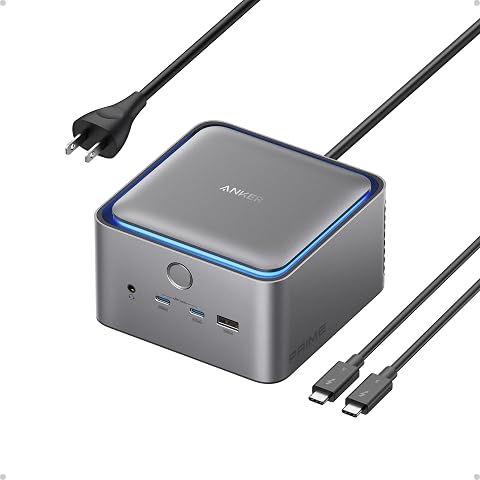 Anker Prime 14-in-1 Thunderbolt 5 Docking StationView on Amazon →
- 2
 Dell Pro Thunderbolt 4 Smart Dock SD25TB4 – USB-C Station 130W, 4 Displays 4K…View on Amazon →
- 3
 Plugable Thunderbolt 4 Dock with 100W Charging, Dual MonitorView on Amazon →
- 4
 Plugable Thunderbolt 4 Dock (TBT-UDM) for Mac and WindowsView on Amazon →
- 5
 Dell WD19TB Thunderbolt Docking Station with 180W AC AdapterView on Amazon →
- 6
 Dell Thunderbolt Dock WD19TBS with 130W Power DeliveryView on Amazon →
Compatibility Shapes the Dock Choice
A dock can simplify a desk by connecting a laptop to displays and peripherals through a shared setup, but the wrong match can leave buyers with unused bandwidth, insufficient charging or screens that do not run as expected. The guide’s practical takeaway is to start with the laptop and the devices already on the desk, not with the largest port count or newest product label.
That distinction matters when weighing Thunderbolt 5 headroom against Thunderbolt 4. A newer-generation dock may be attractive for a compatible computer or future setup, but a host that cannot use the added capability may not benefit from it. Similarly, a listed charging figure needs to be compared with the computer maker’s requirements; the dock’s adapter rating and power delivered to a laptop are not necessarily the same measurement.
For people who rely on two or more external monitors, the guide recommends checking the precise display configuration supported by the computer and operating system. This can prevent a purchase based on a broad compatibility claim that does not match the user’s actual screens.
Products Worth Considering
DJI Mic 3 Wireless Microphone (2 Transmitters, 1 Receiver, Charging Case)

Amazon Kindle Scribe Colorsoft 64GB with Premium Pen

Jackery Explorer 1000 v2 Portable Power Station, 1024Wh LiFePO4 Battery
As an affiliate, we earn on qualifying purchases.
How the Six Models Differ
The guide groups the products around a choice between newer Thunderbolt 5 capability and established Thunderbolt 4 options. Anker’s dock is the sole Thunderbolt 5 model in the selection. The Thunderbolt 4 choices vary by intended fit: Plugable’s TBT-UDM is framed as a cross-platform option, its 100W model centers on charging and two displays, and Dell’s Pro SD25TB4 is pitched toward buyers seeking a current Dell dock.
The Dell WD19TB and WD19TBS are included as related choices that may suit buyers matching an existing Dell setup. The source highlights differences in power configuration, including the WD19TB’s listed 180W adapter and 130W Power Delivery. Its ranking places these WD19 models below the newer or more clearly targeted alternatives, while emphasizing that model age alone does not settle compatibility: the laptop, accessories and required power still need checking.
The source describes its method as a comparison of practical buying factors and listed configurations. It does not provide controlled test results, pricing comparisons or a detailed port-by-port specification table in the material supplied here. Its conclusions should be read as editorial recommendations, not as proof that every dock will perform identically across systems.
“A dock’s port count alone does not guarantee that every screen or peripheral will work as expected.”
— ThorstenMeyerAI.com buying guide
What Buyers Must Verify
The supplied material does not give a publication date, prices, full model specifications or independent test results. It also does not establish how each dock performs with every laptop, operating system, monitor combination or peripheral. The rankings therefore cannot settle which product offers the best value for a particular buyer.
Compatibility remains specific to the host computer. The source does not give a universal list of supported display resolutions, refresh rates or multi-monitor modes for all six docks. Buyers should confirm their computer’s Thunderbolt capability, external-display limits, operating-system support and charging requirements, then check the exact dock configuration and monitor connections. The guide also does not clarify every distinction between the WD19TB and WD19TBS beyond the power details it highlights.
Checks Before You Buy
The source provides no announcement of additional testing or an update schedule. The next step for readers is to compare their laptop’s specifications with the dock’s official documentation and identify the displays and peripherals they intend to use at the same time. For charging, compare the laptop maker’s recommended power supply with the dock’s stated power delivery, rather than relying on the adapter’s headline wattage alone.
For display setups, confirm the supported number of monitors and their resolution and refresh-rate limits for the specific computer and operating system. Check the required HDMI, DisplayPort or USB-C connections, and account for any adapters. The guide’s rankings can narrow the choices, but the final selection depends on those device-level checks; the supplied source does not confirm a single dock as suitable for all setups.
Key Questions
Which dock does the guide rank first?
It ranks the Anker Prime 14-in-1 Thunderbolt 5 Dock as its best overall pick, citing its newer-generation bandwidth positioning and broad set of connections. That is the guide’s editorial ranking, not a universal recommendation.
Is a Thunderbolt 5 dock automatically better than Thunderbolt 4?
No. The guide says buyers should check whether their computer supports the relevant connection and can use the added capability. A Thunderbolt 4 dock may be a more suitable match for a Thunderbolt 4 laptop and an ordinary desk setup.
Can every dock in the guide run two external monitors?
The source does not confirm a universal dual-monitor configuration for all six models. Display support depends on the dock as well as the computer, operating system, monitor specifications and connection type. Check the exact setup before buying.
What is the power difference highlighted for the Dell WD19 models?
The guide lists a 180W adapter for the WD19TB and 130W Power Delivery as a relevant distinction. It advises buyers to compare the laptop’s requirements with the dock’s delivered power rather than assume the figures describe the same thing.
What should I check before choosing a Thunderbolt dock?
Confirm the laptop’s port and Thunderbolt specification, operating-system support, charging needs, external-display limits and the exact ports required by your monitors and peripherals. Port count by itself does not guarantee that all devices will work together as intended.
Source: ThorstenMeyerAI.com