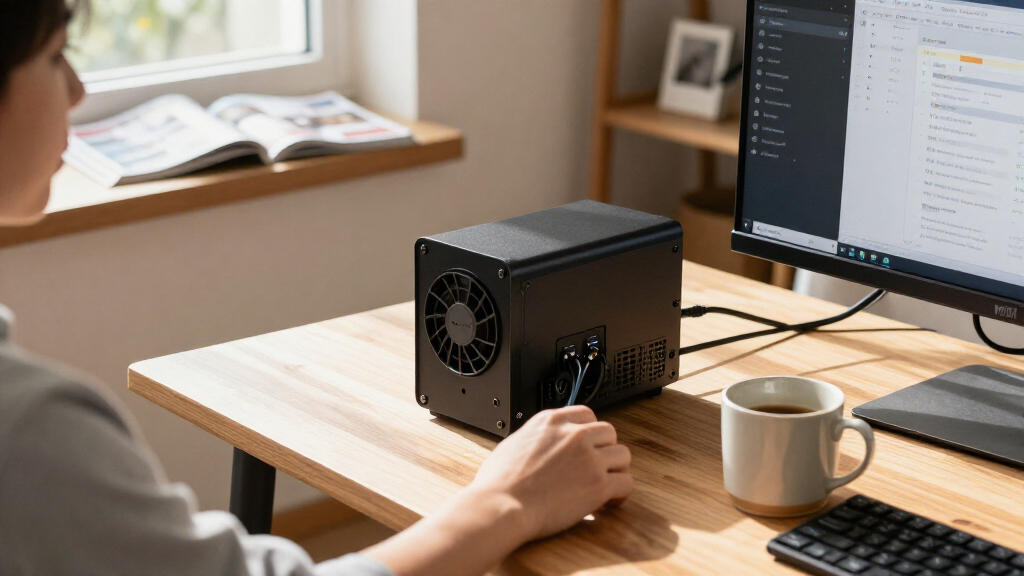

This checklist is for anyone planning hardware to host AI automation agents, from a compact single-server setup to a rack-based environment. It helps you think through the components that support compute, memory, storage, networking, and power. Start with your workload: the right build depends on what your agents need to run and how you plan to expand.

Get business pricing on tech for your team
- Business-only prices and quantity discounts
- Tax-exempt purchasing
- Multiple users, one account, clear invoices
The sections follow the main hardware decisions in a practical order. Compact GPU servers and ECC memory are advice-only slots, while the remaining sections name a product to evaluate. Check the full system before choosing a component, since compatibility depends on the specific server, motherboard, rack, and other equipment.
Use each section as a shopping prompt, not a substitute for checking specifications. Confirm form factor, interfaces, clearances, and supported configurations against your system documentation. Verify fit and compatibility before ordering, especially for rack equipment and components whose names indicate specific interfaces.
Compact GPU server
A compact GPU server can make sense when you want compute in a smaller footprint, but “compact” alone does not tell you whether a system will suit your agent workloads. Begin by identifying the software and models you expect to run, then check the system’s supported GPU configurations and physical dimensions. Workload comes first; choosing around a vague idea of future needs can leave you with a system that is difficult to expand or does not fit its intended space.
A common buying mistake is to focus on the GPU while overlooking the rest of the platform. Review the available expansion slots, memory support, storage connections, cooling requirements, and power connections as a complete build. Check the exact card dimensions and clearance against the chassis documentation, including any space occupied by neighboring components. For a rack or shelf, confirm the server’s width, depth, and mounting approach before committing. Check the whole platform and leave room for the cables and airflow path your installation requires.
There is no product pick for this slot, so compare candidate systems using their manufacturer specifications and your deployment plan. Write down the GPUs, memory capacity, drives, and network interfaces you need, then confirm that the proposed server supports them together. Document the fit before you buy.
What to look for:
- GPU support and physical clearance documented for the exact chassis
- Expansion slots and supported configurations for planned components
- Memory and storage support that match the intended build
- Chassis dimensions and mounting approach for the installation space
- Cooling and power requirements listed in the system documentation
ECC memory modules
ECC memory is an advice-only slot in this checklist, so the key task is to confirm what the server platform supports before selecting modules. Check the system documentation for supported memory type, capacity, module arrangement, and population rules. The fact that a component is described as ECC does not establish that it will work in a particular server. Match the platform first and use the exact server or motherboard specifications as your reference.
A frequent mistake is to mix modules based on capacity or appearance without checking their specifications and the platform’s rules. Verify module type and supported configuration, including any requirements for installing modules in pairs or in specific slots. Also consider the total capacity your services need, rather than choosing a configuration simply because it fills every slot. Follow the population guide so a planned upgrade does not conflict with the installed memory.
For fit, check the module’s physical format and the server’s compatibility list or documentation. For expansion, record the installed capacity and slot layout so you can plan additions using supported configurations. There is no named product to recommend here; use the server vendor’s memory guidance to shortlist modules and confirm the exact specifications before purchase. Keep the configuration consistent with the platform’s documented support.
What to look for:
- ECC support confirmed for the exact server or motherboard
- Memory type and module format listed in platform documentation
- Supported capacity and slot population rules
- Compatibility guidance for the planned module configuration
- An upgrade plan that accounts for installed modules and available slots
Enterprise NVMe SSD
The Sabrent Rocket 4 Plus 8TB PCIe 4.0 NVMe M.2 SSD is the named pick for this storage slot. Before selecting it, confirm that the host has an M.2 connection that supports the drive’s interface and physical format. Also check the system’s supported storage configuration and whether the intended operating system and workload can use the drive as planned. Verify the host first rather than assuming that every M.2 slot supports every M.2 drive.
A common mistake is to treat capacity and interface labels as the full compatibility check. Review the motherboard or server documentation for supported M.2 devices, available slot location, and any configuration constraints. Check physical clearance around the slot and account for nearby components or chassis covers. If the host has multiple drives, confirm how the selected slot fits into the overall storage layout. Check the exact slot and the installation instructions before ordering.
For sizing, consider how much storage your software, models, logs, and other data require, and leave room for the rest of the system’s storage needs. The product name identifies an 8TB PCIe 4.0 NVMe M.2 SSD; it does not establish compatibility with a particular host. Confirm support with the host documentation and the drive specifications. Plan capacity and fit together so the drive suits both the workload and the machine.
What to look for:
- M.2 slot support for the drive’s interface and physical format
- Host documentation confirming supported storage configurations
- Clearance around the selected M.2 slot and nearby components
- Storage capacity sized for the intended workload and data
- Installation guidance for the exact server or motherboard
Sabrent Rocket 4 Plus 8TB PCIe 4.0 NVMe M.2 SSD

This 8TB internal SSD uses a PCIe 4.0 x4 NVMe interface and is compatible with PS5. It supports SMART and TRIM, advanced wear leveling, error correction, and includes Sabrent Acronis True Image software for drive cloning.
Pros:
- Large 8TB capacity
- PCIe 4.0 NVMe interface
- Compatible with PS5
- Includes drive cloning software
Cons:
- Availability can vary
Best for: Buyers whose host supports the named M.2 drive configuration
Not ideal for: Systems without confirmed M.2 interface and physical compatibility
Bottom line: Consider the Sabrent Rocket 4 Plus 8TB only after confirming that the host supports its M.2 format and interface.
10GbE network adapter
The named pick is a 10GbE SFP+ network card described as compatible with a BCM57810S and as a two-port PCIe 2.0 adapter. Those details make host compatibility the first check: confirm the available PCIe slot and the system’s support for the card. Then review the rest of the network path, including the SFP+ connection requirements and the equipment it will connect to. Check both ends before choosing an adapter for a server.
A common mistake is to see “10GbE” and assume the card will connect directly to existing network equipment. Confirm that the switch or other endpoint supports the required connection, and verify any transceiver or cabling needs from the card and network equipment documentation. Check the card’s physical dimensions and slot clearance in the server, especially when other expansion cards are installed. Validate the link components together so the adapter, cabling, and network port form a compatible path.
For sizing, consider how many ports your setup needs and how they will be used. The product name describes a two-port card, but it does not confirm performance or compatibility in a specific host. Check the server’s PCIe slot support and the adapter documentation, then confirm the network equipment and connection parts you plan to use. Map the full connection before placing the card in your build.
What to look for:
- PCIe slot support confirmed for the exact host
- SFP+ connection requirements checked against network equipment
- Cabling or transceiver compatibility verified at both ends
- Physical card clearance and available expansion slots
- Port count suited to the planned network connections
10GbE SFP+ Network Card Compatible with BCM57810S 2-Port PCIe 2.0 Adapter
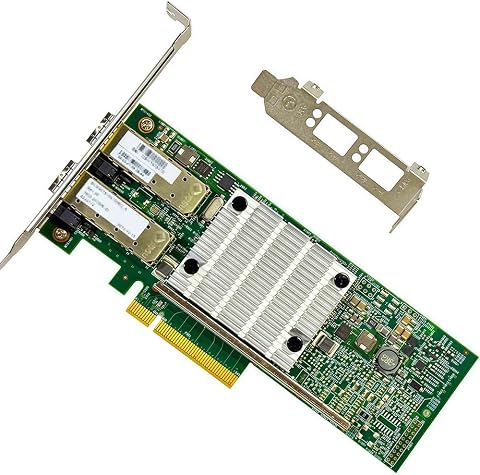
This dual-port 10GbE SFP+ network card features SFP+ ports supporting 10GBASE-SR/LR modules, ideal for high-speed server and NAS connections. It offers virtualization, jumbo frames, PXE/iSCSI boot, and flexible deployment options for enterprise and data center use.
Pros:
- Supports high-speed 10GbE SFP+ connectivity for servers and NAS devices
- Flexible deployment with full-height and low-profile brackets
- Features advanced virtualization and offload capabilities
Cons:
- Requires compatible SFP+ modules (not included)
- Limited warranty period of 3 months
- Requires specific SFP+ modules for RJ45 connections
Best for: Hosts and networks confirmed to support the named two-port card
Not ideal for: Setups without verified PCIe and SFP+ compatibility
Bottom line: Check the host slot and the complete SFP+ connection path before selecting this adapter.
Rackmount UPS
The APC SMTL3000RM2UC 3000VA Lithium-Ion Rackmount UPS is the named pick for the power-protection slot. Before selecting it, check the rack space available and confirm the UPS’s mounting requirements and physical dimensions from its documentation. Review the equipment you intend to connect and compare its power needs with the UPS specifications. Match the load and rack before purchase.
A common buying mistake is to choose a UPS based on its name alone without accounting for the connected equipment or installation details. Make a list of the devices that will be attached, then check their power requirements and the UPS documentation for supported use. Confirm that the rack can accommodate the unit and that its mounting hardware and clearance suit the cabinet. Consider cable routing and access to the equipment connections as part of the layout. Check the complete installation so the UPS can be mounted and connected as intended.
The product name identifies a 3000VA rackmount unit with lithium-ion batteries, but those details do not establish runtime for your equipment or compatibility with your rack. Consult the manufacturer specifications for dimensions, electrical requirements, supported mounting, and operating details. Also check that your planned connected load is appropriate for the unit. Use documented requirements to determine whether this model suits your setup.
What to look for:
- Rack dimensions and mounting requirements for the exact UPS
- Connected equipment power needs checked against UPS specifications
- Cabinet space and clearance for installation and connections
- Electrical requirements confirmed for the intended location
- Manufacturer documentation for operating and setup details
APC SMTL3000RM2UC 3000VA Lithium-Ion Rackmount UPS
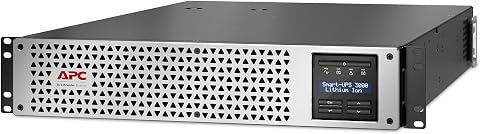
This 2U rackmount UPS provides 3000VA/2700W of pure sine-wave backup power for servers, routers, switches, and other equipment. It includes SmartConnect remote monitoring, automatic voltage regulation, a hot-swappable lithium-ion battery, and an LCD status display.
Pros:
- Pure sine-wave output with 3000VA/2700W capacity
- Hot-swappable lithium-ion battery
- SmartConnect remote monitoring and notifications
- Automatic voltage regulation and clear LCD status display
Cons:
- Listed runtime is 2 minutes
- Requires rack space and is relatively large
Best for: Rack-based setups whose load and mounting needs match the specifications
Not ideal for: Buyers who have not measured rack space or checked connected equipment
Bottom line: Verify rack fit and connected load against APC’s documentation before choosing this UPS.
Server rack cabinet
The named pick is the StarTech 42U 4-Post Server Cabinet, described as rack mount, 36 inches deep, and rated at 2000 pounds in its product name. Start by measuring the installation area and checking that the cabinet’s dimensions, access, and mounting arrangement work in that space. Confirm the equipment’s rack requirements and depth against the cabinet documentation. Measure the whole route, including doorways and the path to the final location.
A common mistake is to check rack units while overlooking depth, equipment rails, cable space, and access for installation. List the equipment planned for the cabinet and verify its rack mounting approach and depth. Check the cabinet documentation for supported loading and installation details, and make sure the floor and route can accommodate the assembled setup. Leave room to reach connections and service equipment once installed. Plan for access as well as the equipment dimensions.
The product name supplies useful identifiers, but the exact fit depends on your devices, rails, room, and installation plan. Confirm the cabinet’s full dimensions and specifications, then compare them with the rack requirements for every server, UPS, and other component. Also check how cables will enter and exit the cabinet. Check each device before committing to a cabinet for the build.
What to look for:
- Available space and access route for the cabinet
- Rack unit needs for all planned equipment
- Cabinet depth checked against equipment and rail requirements
- Documented load and mounting specifications
- Cable routing and service access in the intended location
StarTech 42U 4-Post Server Cabinet, Rack Mount, 36in Deep, 2000lb, Black

This 42U server rack cabinet provides secure, adjustable, and ventilated storage for 19-inch rack-mount devices such as servers, switches, and networking equipment. It features lockable doors and panels, mobility with casters and leveling feet, and comes fully assembled for easy deployment.
Pros:
- Adjustable mounting depth supports various equipment sizes
- Lockable doors and panels enhance security
- Fully assembled for quick setup
- Includes mobility features with casters and leveling feet
Cons:
- Heavy weight may require assistance for mobility
- Limited color options (black only)
- No mention of optional rack accessories
Best for: Installations with equipment and space confirmed for a 42U, 36-inch-deep cabinet
Not ideal for: Rooms or devices without verified dimensions and mounting requirements
Bottom line: Compare the cabinet specifications with the room, equipment, rails, and access route before buying.
Use a budget-first buying order by addressing the parts that define the system before adding capacity: establish the compact server requirements, verify ECC memory support, and confirm the host’s storage and network compatibility. Then check rack space and the complete connected load before choosing cabinet and UPS equipment. Prioritize compatibility checks so each purchase fits the build you are assembling.
You do not need to settle every hardware choice at once. Write down your workload, host specifications, dimensions, and connection requirements, then use those notes to compare the named picks and advice-only slots. Build with confidence by checking each component against the system documentation before ordering.
Halloween Picks

Star Wars Yoda and R2-D2 Inflatable Halloween Decor, 6 ft with LEDs, Indoor/Outdoor

11.2-Foot Halloween Inflatable Pumpkin with LED Lights

Spirit Halloween 54-Inch Sitting Scarecrow Animatronic
As an affiliate, we earn on qualifying purchases.