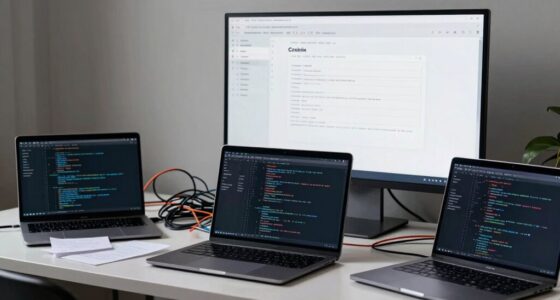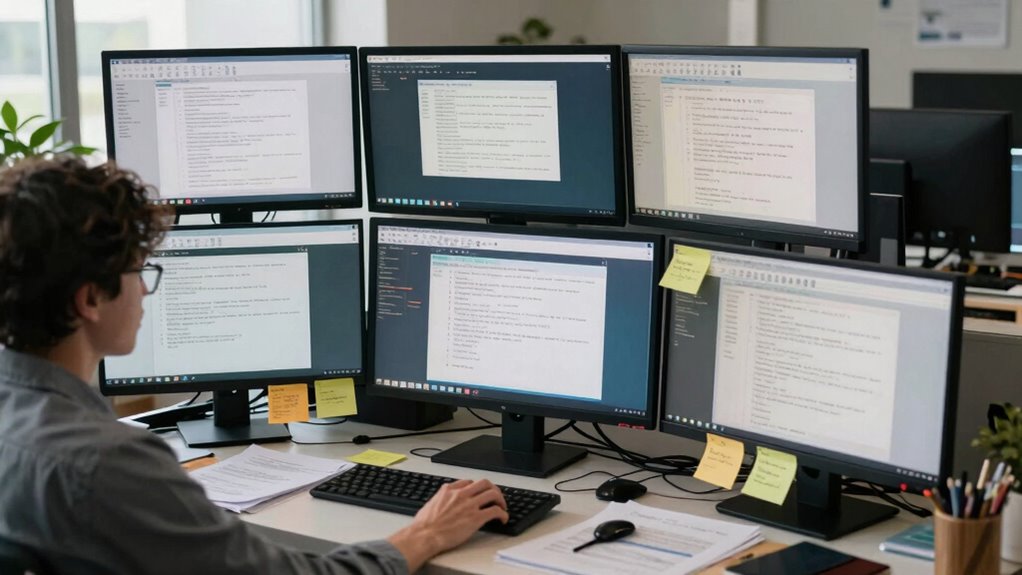

Adding an extra screen won’t fix your workflow problems because most issues stem from inefficient processes, poor system integration, and manual tasks, not just limited visual space. More screens might reduce clutter temporarily, but they won’t address core systemic flaws. To truly improve productivity, you need to focus on automation, better system communication, and streamlining tasks. If you keep exploring, you’ll discover how tackling these foundational issues leads to lasting gains.

Get business pricing on tech for your team
- Business-only prices and quantity discounts
- Tax-exempt purchasing
- Multiple users, one account, clear invoices
Key Takeaways
- Workflow inefficiencies often stem from poor processes and system integration, not limited visual space.
- Adding screens increases clutter without addressing underlying systemic or automation issues.
- Improving system interoperability and automation yields more significant productivity gains than hardware expansion.
- Enhancing user experience and simplifying interactions are more effective than increasing visual capacity.
- Resolving foundational workflow problems is essential; hardware upgrades are only temporary fixes.
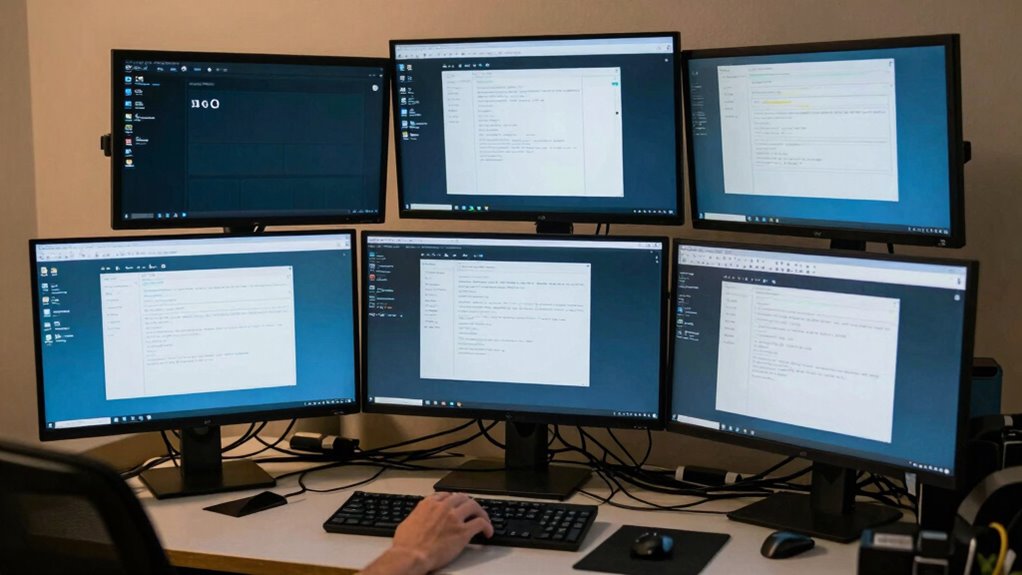
Adding another screen might seem like a quick fix for workflow issues, but in reality, most problems run deeper than what extra hardware can solve. While more screens can give you additional space to view information, they rarely address the core inefficiencies that slow down your work. Often, the real barriers are tied to automation bottlenecks and how smoothly your systems and processes work together. If your workflow relies heavily on manual tasks or disjointed tools, simply adding a screen won’t make those tasks any easier or faster. Instead, it might even cause more clutter, making it harder to focus and increasing the risk of errors.
Adding more screens doesn’t fix deep workflow issues caused by manual tasks and poor system integration.
The root of many workflow problems isn’t a lack of space but inefficient processes and poor integration. Automation bottlenecks, for example, often stem from outdated or incompatible systems that don’t communicate well. When your tools don’t sync properly, you waste time copying data, switching between applications, or correcting mistakes that could have been avoided with better automation. An extra screen might give you more visual real estate, but it won’t fix these systemic issues. Without addressing the automation bottlenecks, you’re just shifting the clutter around instead of solving the underlying problems. Improving system interoperability can be a game-changer in reducing these issues.
Your user experience plays a critical role here. If your current setup forces you to jump through hoops—clicking multiple buttons, searching for information across different tabs, or dealing with slow system responses—adding another screen won’t improve that. It’s like adding more lanes to a congested highway; unless the traffic flow is optimized, more lanes just lead to more congestion. To genuinely improve your workflow, you need to streamline how you interact with your tools. Simplify processes, automate repetitive tasks, and optimize your software integrations. These changes directly enhance user experience, making your work smoother and more efficient.
Furthermore, addressing system compatibility issues can significantly reduce frustration and improve overall productivity. When systems are interoperable, workflows become more seamless and reduce the need for manual interventions. Ultimately, the key to solving workflow problems isn’t just about increasing screen real estate but about rethinking your entire approach. Focus on reducing automation bottlenecks, improving system integrations, and creating a user-friendly environment. When your tools work seamlessly and your processes are efficient, your workflow becomes more productive. Extra screens might be a temporary band-aid, but true improvement comes from addressing the foundational issues that impact how you work every day. Only then will you see substantial gains in efficiency and a better overall user experience.
Products Worth Considering

DJI Mic 2 Wireless Microphone System (2 Transmitters, Receiver, Charging Case)

Bose QuietComfort Ultra Earbuds (2nd Gen) – Wireless Noise‑Cancelling Earbuds with Mic, Immersive Audio, USB‑C Charging, Up to 6 Hours Batte

EcoFlow DELTA 3 Portable Power Station (1024Wh, 1800W)
As an affiliate, we earn on qualifying purchases.
Frequently Asked Questions
How Do I Identify the Root Cause of Workflow Issues?
To identify the root cause of workflow issues, start with process mapping to visualize each step and spot inefficiencies. Conduct bottleneck analysis to locate where delays occur or resources pile up. Ask your team for feedback and observe the workflow firsthand. Combining these methods helps reveal underlying problems, so you can address the real causes rather than just symptoms, leading to more effective and lasting solutions.
What Alternative Solutions Exist Beyond Adding Screens?
You might discover that exploring automation pathways and refining the user interface can substantially improve workflows. Instead of adding screens, consider automating repetitive tasks, integrating systems, or streamlining navigation. Sometimes, a simple tweak in the user interface can eliminate confusion, while automation can reduce manual effort. These solutions often work together, creating a smoother, more efficient process that addresses root issues without cluttering the user experience.
How Can Team Collaboration Improve Workflow Efficiency?
You can improve workflow efficiency by enhancing team collaboration through effective remote communication and task delegation. Keep communication clear and consistent with regular updates, virtual meetings, and collaboration tools. Delegate tasks appropriately based on team members’ strengths, ensuring everyone understands their responsibilities. This approach minimizes misunderstandings, accelerates decision-making, and boosts productivity, ultimately creating a smoother workflow without relying on adding more screens or tools.
Are There Specific Tools That Optimize Workflow Without Extra Screens?
Certainly, you can enhance workflows with tools that emphasize ergonomic design and seamless software integration. These solutions streamline tasks without adding clutter, making your workspace more intuitive. By choosing platforms that prioritize user comfort and compatibility, you reduce the need for extra screens and minimize disruptions. Such tools help you work smarter, not harder, fostering efficiency through thoughtful design and interconnected systems.
What Role Does User Training Play in Workflow Problem-Solving?
User training plays a vital role in workflow problem-solving by boosting user adaptation and ensuring training effectiveness. When you invest in proper training, you help users understand tools and processes better, reducing errors and inefficiencies. As a result, workflows become smoother and more intuitive. Well-trained users adapt quickly to changes, making minor issues easier to handle and preventing small problems from escalating into larger disruptions.
Conclusion
Remember, adding one more screen won’t fix the core issues in your workflow. Studies show that over 70% of productivity problems stem from poor processes, not technology. Instead of stacking screens, focus on streamlining your tasks and improving communication. By addressing the root causes, you’ll find that your workflow becomes smoother and more efficient. Sometimes, less truly is more—so before reaching for another monitor, consider what’s really holding you back.